Run Qwen Image 2.1 Locally: GGUF, Turbo and ComfyUI Options
Qwen Image 2.1 is a text-to-image and editing model that can run locally. A working setup combines weights, supporting components such as a text encoder and VAE, a runtime, and enough GPU memory.
This guide compares ComfyUI, community GGUF quantizations, and the official Turbo checkpoint, then shows a browser-based way to try the model.
1. What Qwen Image 2.1 provides
The Qwen Image 2.1 repository describes a seven-billion-parameter image model for generation and editing, with native 2K output and support for transparent RGBA images. It can create images from text and modify images supplied as references. Read the repository for current checkpoints, supported tasks, and licensing.
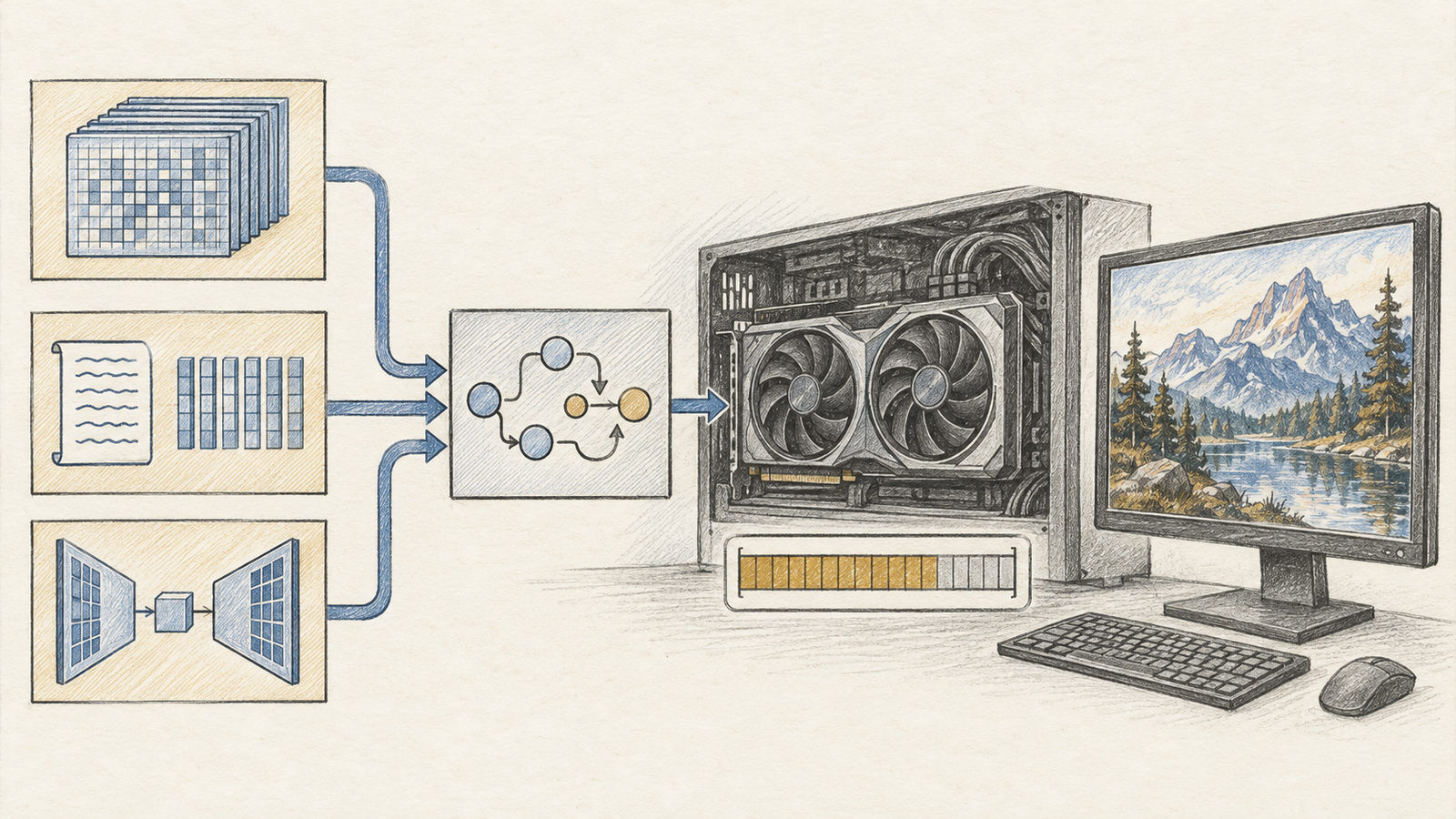
A local pipeline typically contains several pieces:
- Diffusion or transformer weights perform the core image-generation work.
- Text encoder turns the prompt into a representation the model can use.
- VAE converts between image pixels and the model’s latent representation.
- Runtime and workflow connect the files, sampler settings, and output steps.
Compatibility matters. A checkpoint and its workflow may expect particular versions of the text encoder, VAE, and node packages. Downloading the largest file first is not a setup plan; start with the workflow instructions and obtain the matching components.
2. The simplest local route: ComfyUI
The official ComfyUI Qwen Image 2.1 guide is a good place to begin. Update ComfyUI, open the model’s workflow or template, install any required nodes, and place each checkpoint in the directory the guide specifies. The workflow should make the expected model files and settings explicit.
Begin with a moderate resolution and a short prompt. Confirm that the graph loads, the model files resolve, and one output completes before increasing resolution or adding optional extensions. If you encounter a missing-node warning, resolve that first; changing model weights and workflow nodes at the same time makes errors harder to diagnose.
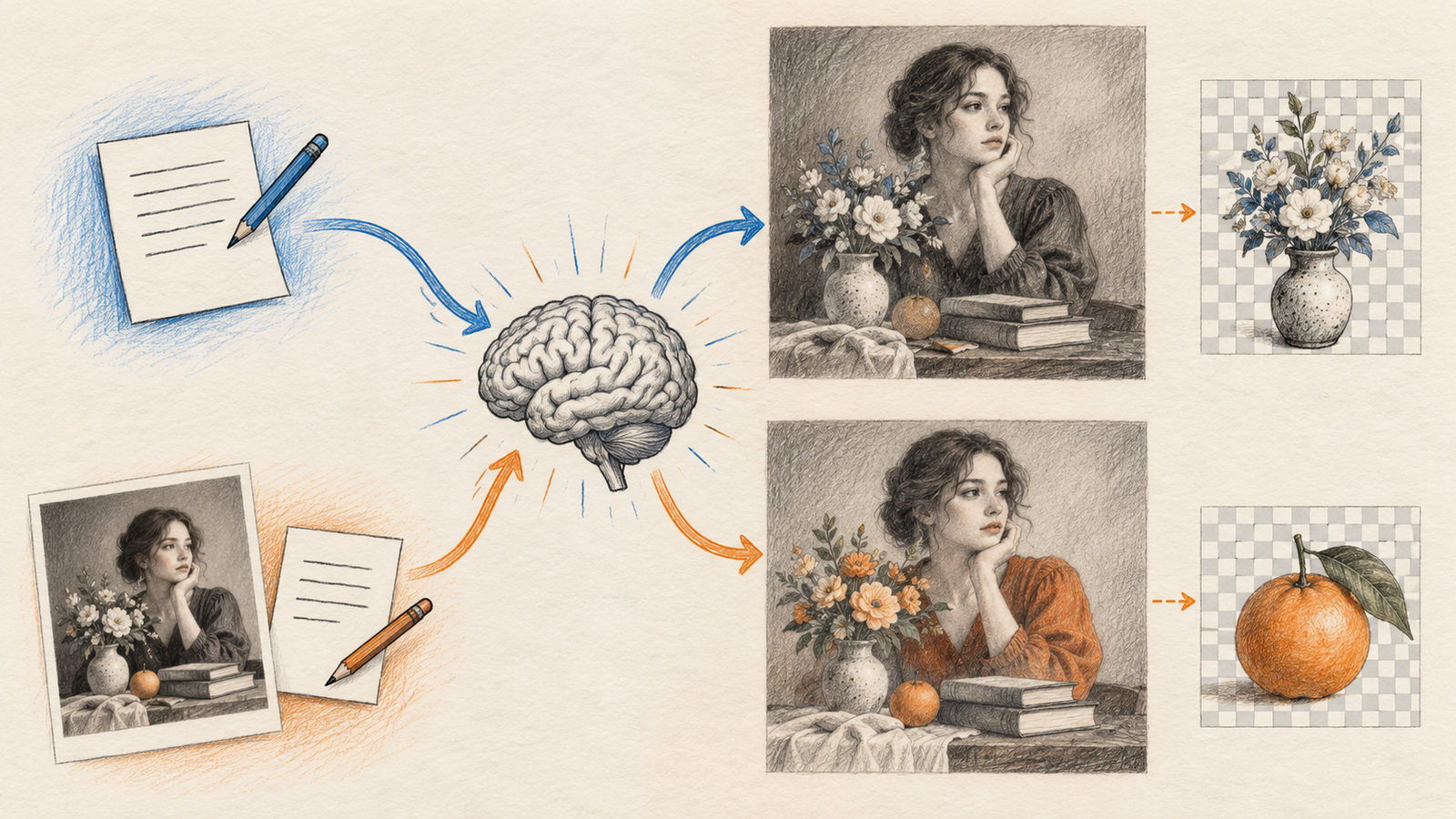
For a new image, choose a text-to-image workflow and describe the subject, composition, lighting, and details to preserve. For editing, load a reference image and write both the change and the invariant: for example, “replace the background with a garden, preserve the person, pose, clothing, and crop.” A prompt that says only “make it better” gives the model too little guidance.
3. GGUF: smaller memory footprint, more compatibility checks
GGUF is a community format used to distribute quantized weights. Quantization reduces the numerical precision of model weights and can lower memory use, which may make local experimentation possible on hardware that cannot hold a full-precision checkpoint.
For Qwen Image 2.1, treat GGUF as a community workflow rather than an official Qwen release format unless the upstream repository says otherwise. One community GGUF repository includes ComfyUI workflows; check its exact quantization, supported runtime, and required companion files. A quantized transformer alone may not include the text encoder or VAE.
Peak memory also depends on resolution, activations, batch size, encoder, VAE, and offloading. A workflow that barely fits may run slowly while moving data between RAM and VRAM. Compare its requirements with your hardware before downloading every file.
4. Turbo options and speed trade-offs
Qwen released Qwen-Image-2.1-Turbo officially on October 9, 2026. The official repository describes it as using the same 7B visual-generation architecture as the base model, with an eight-step denoising schedule for both text-to-image and editing. It publishes a Turbo checkpoint for local use with Diffusers, plus hosted Pro and Turbo APIs. See the official Qwen repository for the current installation requirements and example.
For local inference, the repository’s current Diffusers example loads Qwen/Qwen-Image-2.1-Turbo through QwenImage21Pipeline. The recommended schedule is part of the checkpoint configuration, so the example does not manually set a standard model’s step count. Hardware, dtype, CUDA support, and Diffusers version still matter; confirm the latest requirements before downloading the files.
The current local example looks like this:
import torch
from diffusers import QwenImage21Pipeline

pipe = QwenImage21Pipeline.from_pretrained(
    "Qwen/Qwen-Image-2.1-Turbo", dtype=torch.bfloat16
).to("cuda")

image = pipe(
    prompt="A small glass greenhouse beside a quiet lake at dawn",
    width=1024,
    height=1024,
    use_kv_cache=True,
    generator=torch.Generator("cpu").manual_seed(42),
).images[0]
image.save("qwen-turbo.png")
Use the latest Diffusers source specified by Qwen; the Turbo checkpoint supplies its own eight-step schedule.
ComfyUI natively supports the standard Qwen Image 2.1 model. Turbo is a separate official checkpoint released after the initial ComfyUI support, so do not assume every base-model workflow accepts it. Use a ComfyUI Turbo workflow only when its maintainer explicitly names this checkpoint and sampler schedule. Community LoRAs and quantizations are separate artifacts; check their owners, base-model compatibility, and licenses.
5. Use Qwen Image 2.1 in a browser
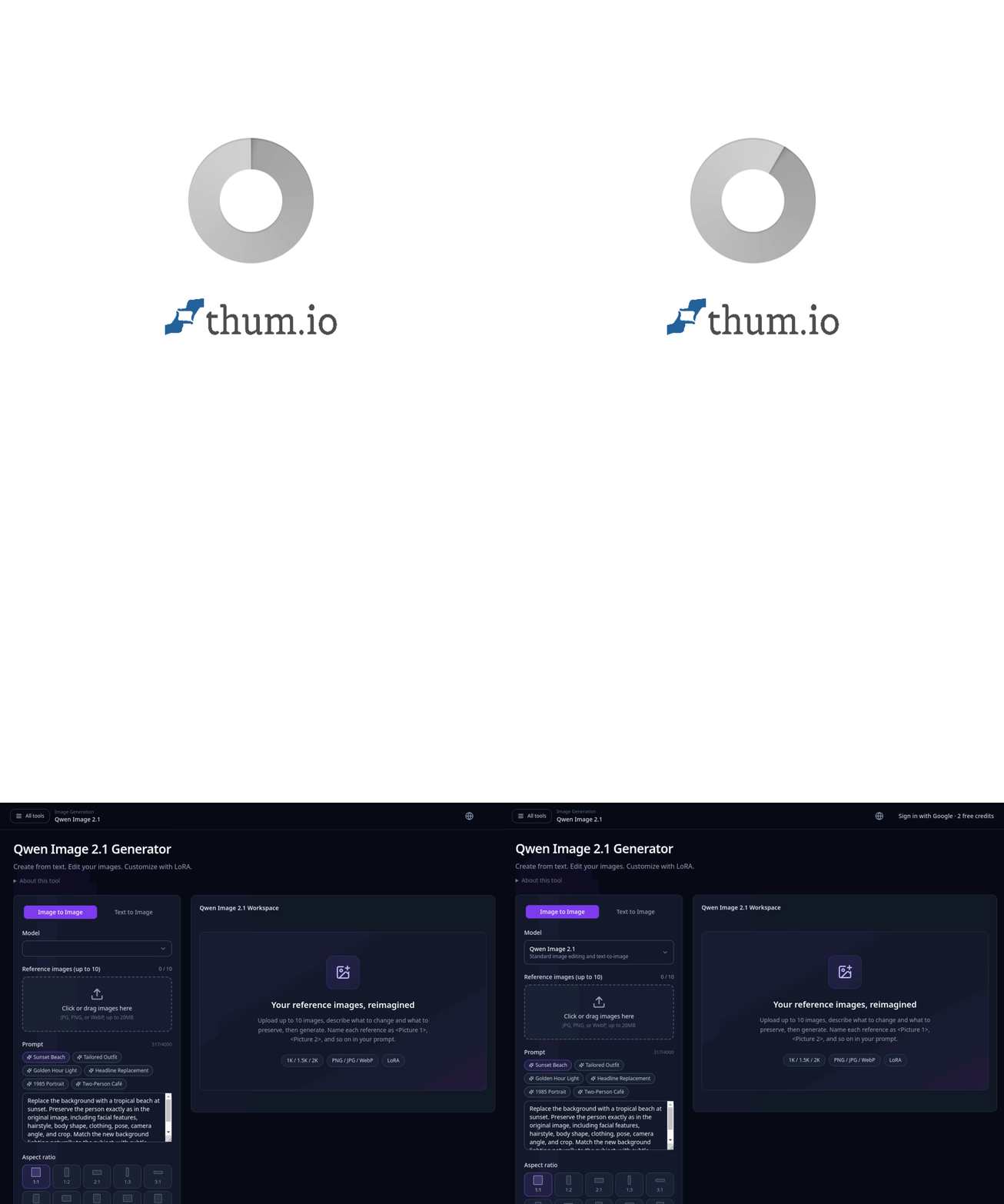
If installation is a distraction, Qwen Image 2.1 Generator on ImageLayered provides a browser workspace for text-to-image and image-to-image workflows. It is useful for exploring the model before configuring local files; the hosted interface handles the runtime for you.
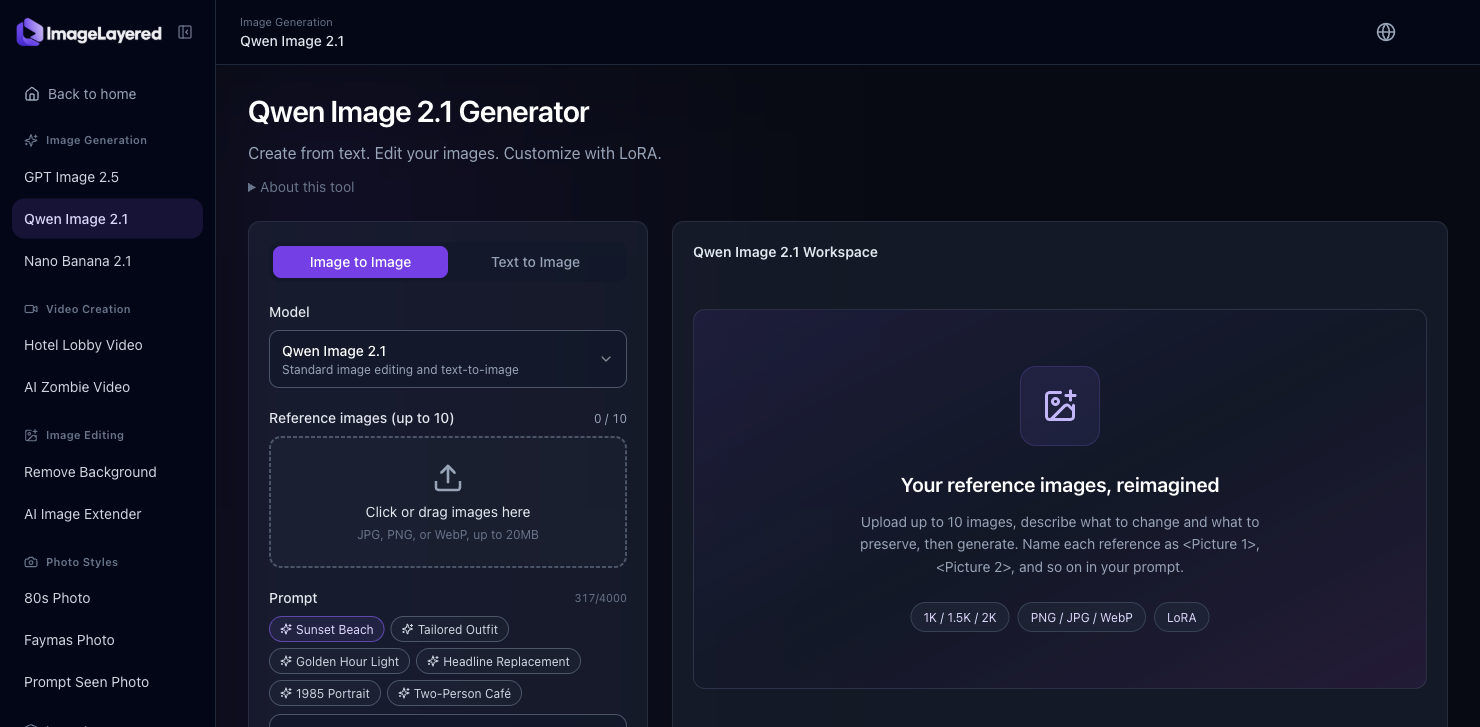
To try it:
- Open the Qwen Image 2.1 tool and choose Text to Image for a new picture or Image to Image when you have references.
- Keep the selected model at Qwen Image 2.1. In image-to-image mode, add one or more reference images; the page currently allows up to ten.
- Write a prompt that separates what should change from what should stay the same. Use the provided prompt examples as starting points, not as finished instructions.
- Choose an available resolution and output format, then check the current credit cost before generating.
- Generate and download the result promptly. The page notes that results are not stored in your account, so save any output you want to keep.
Controls and credit costs can change. Review current terms before uploading sensitive images or using results commercially; hosted access does not change the local model license.
6. License and responsible use
Qwen Image 2.1’s repository includes a research license with commercial-use restrictions unless a separate commercial license is obtained. Read the current license before publishing or selling generated work. Community quantizations and adapters can have their own terms, so check every component in the pipeline.
For any production use, document each model, adapter, workflow, and license. Get permission before editing real people’s images and disclose synthetic changes when needed.
Conclusion
ComfyUI is a straightforward local route, GGUF can lower weight memory with extra compatibility checks, and Turbo uses an official eight-step schedule. Start with one standard output, then compare Turbo and any community quantization under the same conditions. To explore without setup, try the ImageLayered browser tool. Read the current license before commercial use.