Squoosh App is a browser-based image optimizer that lets you reduce an image’s file size and compare the result before saving it. It is useful when a large image slows down a page or takes too long to share.
Image compression is a trade-off: a smaller file can load faster, but aggressive settings may blur edges or create visible artifacts. Squoosh App makes that trade-off easier to inspect by putting the original and compressed image side by side. The goal of this guide is to show a simple workflow and explain what to check before exporting.
What Squoosh App does
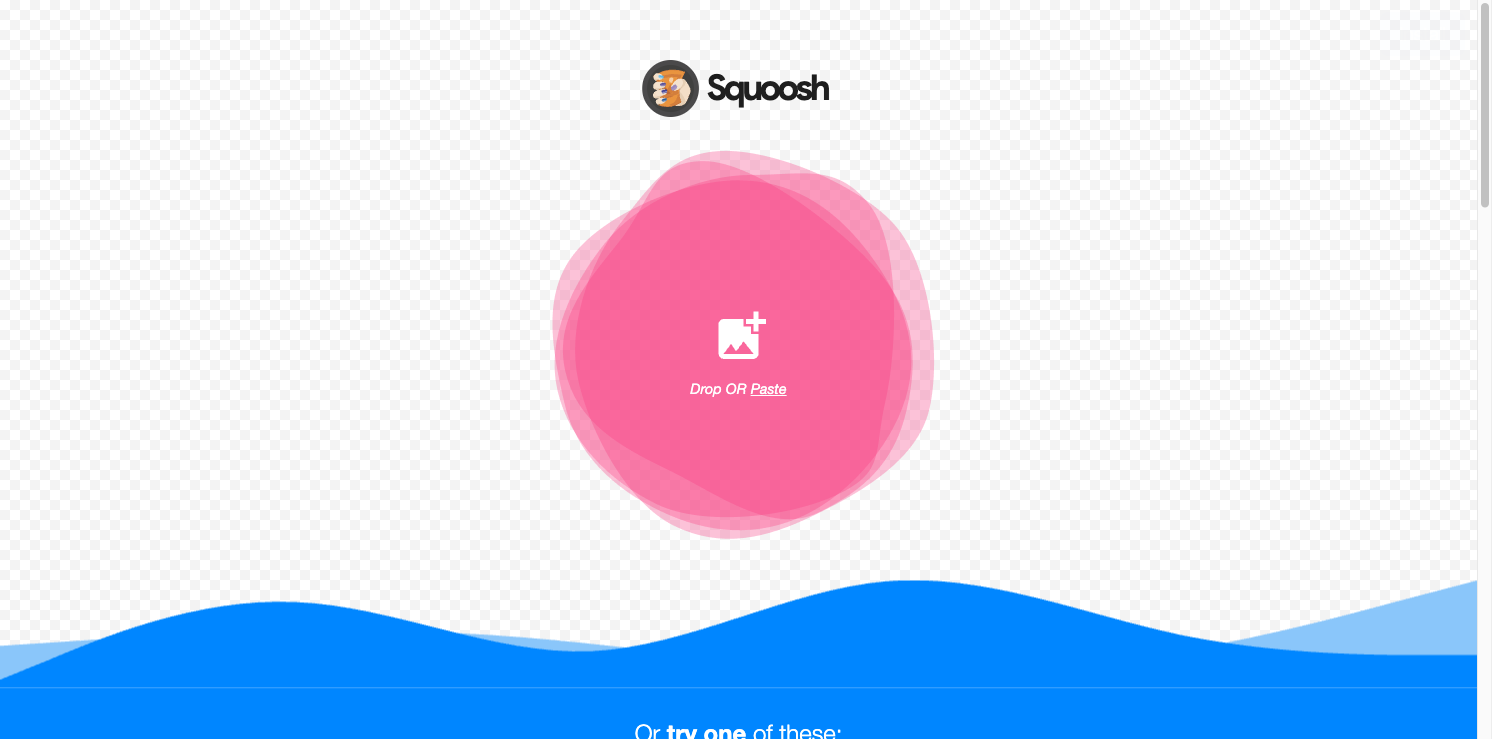
The Squoosh App interface starts with an image drop or paste area. After opening a file, you can choose an output format and adjust encoder settings. The comparison view helps you inspect visual quality while checking how the file size changes. The exact codecs and options depend on the current app build and browser support.
One notable detail is where the image is processed. The Squoosh project says compression runs locally in the browser and the image itself is not sent to a server. Its project documentation also notes that the site uses analytics for limited usage information, including basic visitor data and before-and-after file sizes. This distinction is useful: local image processing does not mean the site collects no analytics at all.
A careful compression workflow
Open an image, select a format, and begin with moderate settings. Move the comparison divider across areas with fine text, hair, gradients, or sharp edges. These details often reveal compression damage sooner than a flat background does.
Then compare the output size with the original. If the visual difference is hard to see at normal display size, the smaller file may be a good candidate for web use. If fine detail breaks apart, raise the quality setting or try another format. Export the result only after checking it at the size where people will actually view it.
Squoosh App is especially handy for one-off image decisions, learning how formats behave, and preparing a smaller asset without installing a desktop editor. It does not decide which file size is right for every website. A product image, a photograph, and a transparent icon may need different settings.
What to keep in mind
Compression can remove detail, and lossy formats cannot restore pixels that the encoder discarded. Keep an original copy when the image may need another edit. Also consider transparency, color, and the destination device before choosing an output format.
Squoosh App gives you a visible way to balance size and appearance: open, compare, tune, and save. For a small image set, that hands-on loop is often enough to find a practical setting. Open Squoosh App and compare the output before replacing your source file.