SnapGen AI is a browser-based creative platform for generating videos from text prompts, with a studio that exposes settings such as a first frame, model, aspect ratio, resolution, and clip length. Its homepage also presents image and speech generation as part of a broader AI content toolkit.
Making a short video usually involves several small decisions: what should happen, what should it look like, and what format will fit the destination? SnapGen AI puts some of those choices beside the prompt, so a creator can describe an idea and adjust the output before generation. This guide looks at the visible workflow and the checks worth making before sharing a result.
Start with a clear video idea
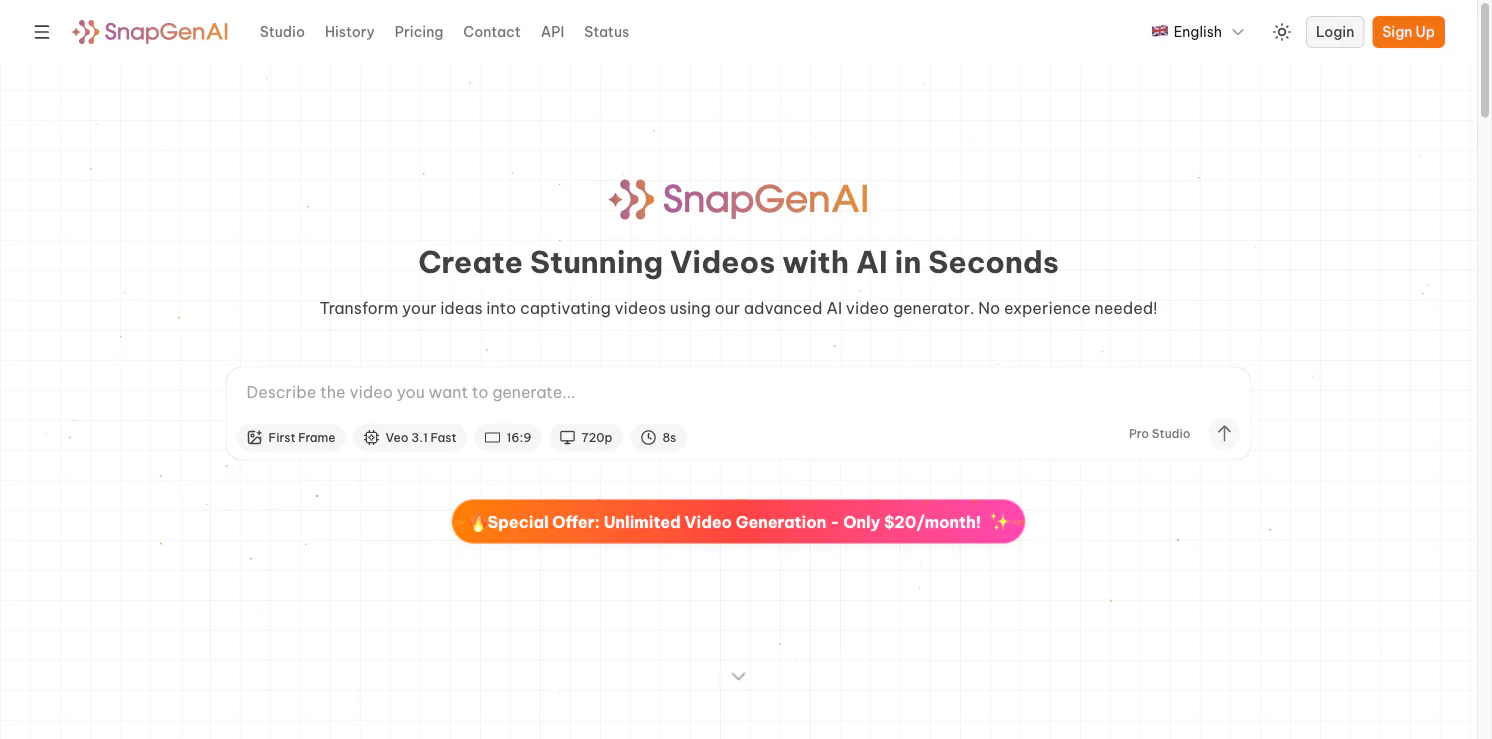
The SnapGen AI homepage opens with a video prompt field. The live page showed controls for a first frame, the Veo 3.1 Fast model, a 16:9 aspect ratio, 720p output, and an eight-second clip. These are the settings shown in the homepage interface at the time of writing; available choices can vary by model, account, or product update.
A useful prompt names the subject, action, setting, and visual style. For example, describe what the camera should see and how the scene should change, rather than relying on a broad instruction such as “make it cinematic.” If a starting frame matters, use the first-frame option and make sure the prompt describes motion that can plausibly continue from that image.
SnapGen AI also links to a Pro Studio workflow. That gives users a route beyond the small set of controls on the homepage, while keeping the initial creation path approachable for someone who wants to test one idea first.
A simple creation loop
The site describes a four-part process: describe the idea, customize settings, let the AI process the request, then download or share the result. In practice, keep the first generation narrow. Review the clip for subject consistency, motion, framing, and any text or visual details that must be accurate.
If the result misses the mark, change one part of the prompt at a time. Specify the action more clearly if movement is wrong. Adjust the aspect ratio if the framing does not fit the destination. Try another model if the visual treatment is not close to the intended style. This makes it easier to tell which change helped.
More than a video generator
SnapGen AI presents image, video, and speech creation together. Its homepage also lists collaboration and multi-format export among its feature goals. That combination may help creators who are building several kinds of content, though the exact tools and export options should be checked in the studio before planning a project around them.
For social posts, product concepts, or a quick visual draft, a prompt-driven tool can help explore several directions before a full production. SnapGen AI can provide that first pass, while people still need to check brand details, captions, factual claims, and rights to any uploaded material.
When to try SnapGen AI
SnapGen AI is a reasonable place to start when you have a short video idea and want to test a generated draft without setting up a full editing project. It is less suited to work that needs frame-by-frame control or a guaranteed match to real-world footage without further editing.
Treat the homepage settings as a starting point, not a promise about every available output. Check the current model, resolution, duration, pricing, and commercial-use terms in the product before you commit to a larger batch. Visit SnapGen AI to explore its live generator and studio.