An embroidery idea can start as a word, a small motif, or a sketch. I Love Stitching brings those ingredients into a browser canvas, where you can arrange text and other elements into a stitch-style design.
I visited the editor on October 15, 2026. Its workspace centers on a fabric-like canvas, with tools for thread colors, fonts, patterns, insertion, drawing, and trimming arranged around it. The interface also exposes options for exporting or recording a design, including transparent PNG, JPG, DST, video, GIF, and Live Photo-style output. Those labels describe what the app offers; check the export produced by your own project before relying on it for a machine or a production workflow.
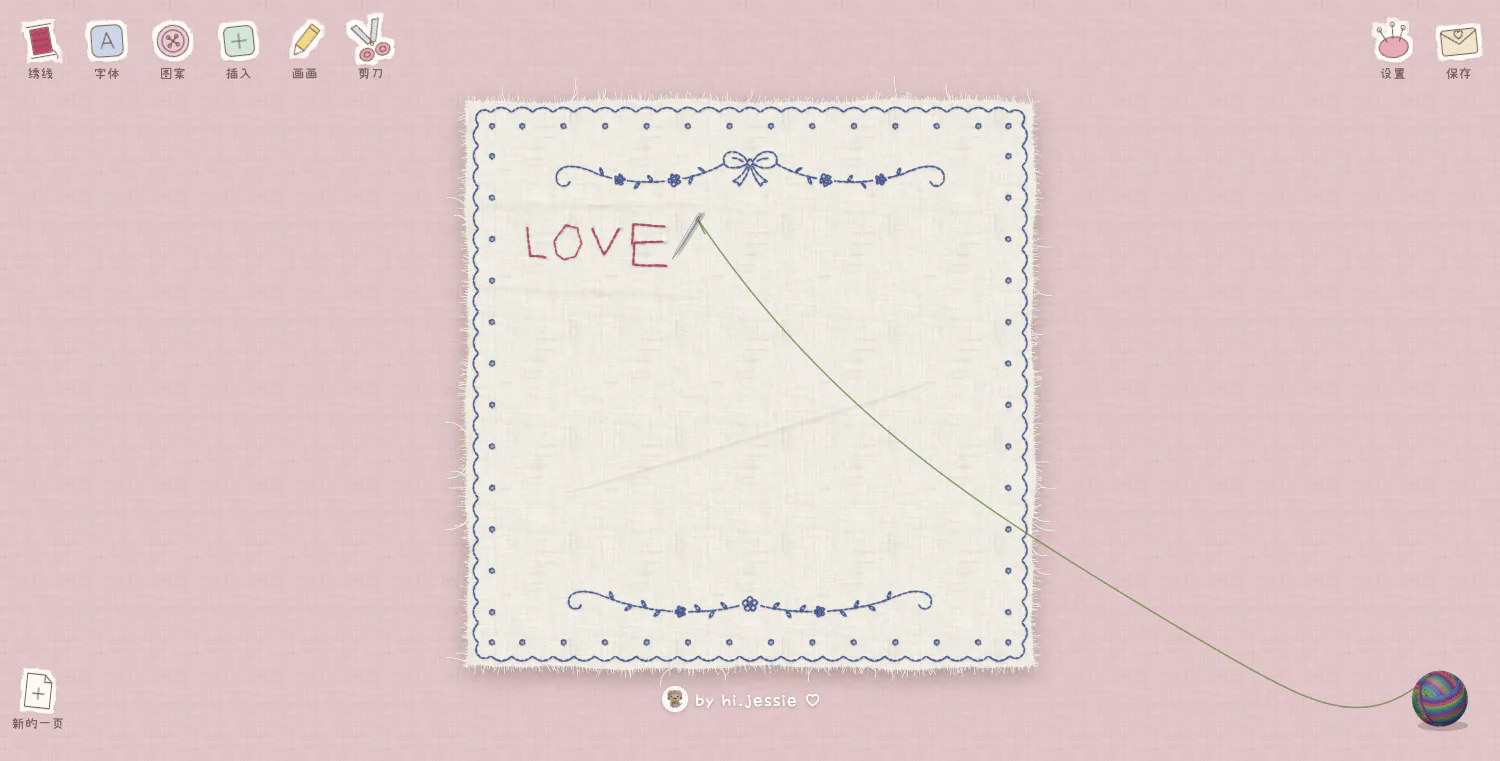
Build a design on the canvas
The editor makes the canvas the main workspace rather than hiding common actions in a long settings menu. You can add text, choose a type style, and arrange it freely. The toolbar also offers patterns and drawing tools, which gives you a few ways to move from a plain phrase to a more composed layout.
The visible controls include options for stitching text, free placement, color changes, and image or vector insertion. This is useful when you want to test a wordmark, a short name, or a decorative element before committing to a more involved design. Because the canvas keeps the elements together, you can see spacing and balance while you work.
Export options and local history
One notable detail is that I Love Stitching presents more than a single “save” action. Its interface lists image outputs such as transparent PNG and desktop JPG, alongside a DST file option intended for embroidery-machine workflows. It also lists ways to record the design process as video, GIF, or a Live Photo-style format. Availability and behavior may depend on the browser or device, so test the exact output you need.
The app's history notice says that history stays on the current device. That means the history feature should not be treated as cloud backup or cross-device synchronization. Save an exported copy somewhere you control before closing the page if the work matters to you.
A simple way to explore it
Begin with a short phrase and one font. Adjust the color, place the text, and then add a pattern or a drawn detail if the design needs it. Before making a complex piece, export a small test so you can check how the chosen format handles its dimensions, colors, and line detail.
If you plan to use the design with an embroidery machine, verify the machine's supported formats and settings. The DST option is a promising sign, but seeing an export option is not the same as confirming that every machine will accept the resulting file without adjustment.
Who is it for?
I Love Stitching is aimed at people who want to arrange text and visual elements in a stitch-oriented editor without starting in a full desktop design suite. It is a practical place to sketch a personalized label, a short decorative phrase, or a simple motif. Its range of export labels makes it worth testing for both image sharing and embroidery workflows, while its device-local history makes manual saving important.
The clearest workflow is: compose on the canvas, export a small test, and confirm the output in the app or machine that will use it next.