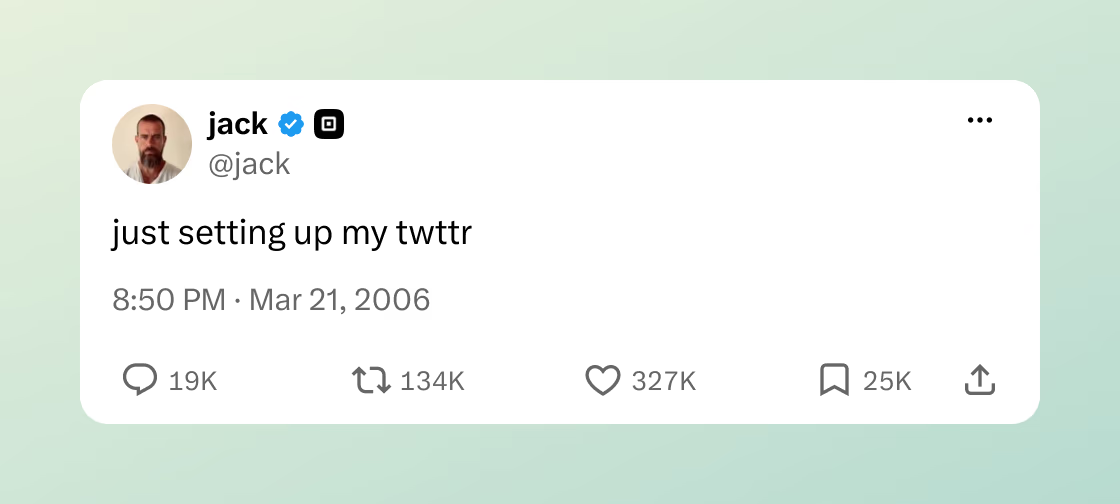
A good post, beautifully framed.
X to Image
Turn a post into a picture worth sharing. A free Twitter to Image tool with six styles, your own finishing touches, and sharp downloads.
No sign-up No added watermark
Your canvasRendering…
Preparing your canvas…
The renderer loads once, then styles update locally.REAL POSTS. DIFFERENT LOOKS.
A few posts you might recognize
From the first tweet to a first look at Mars. Pick an example, make it yours, and download your own version.

@BarackObamalavender
Four more years
The election-night photograph, framed in soft lavender.

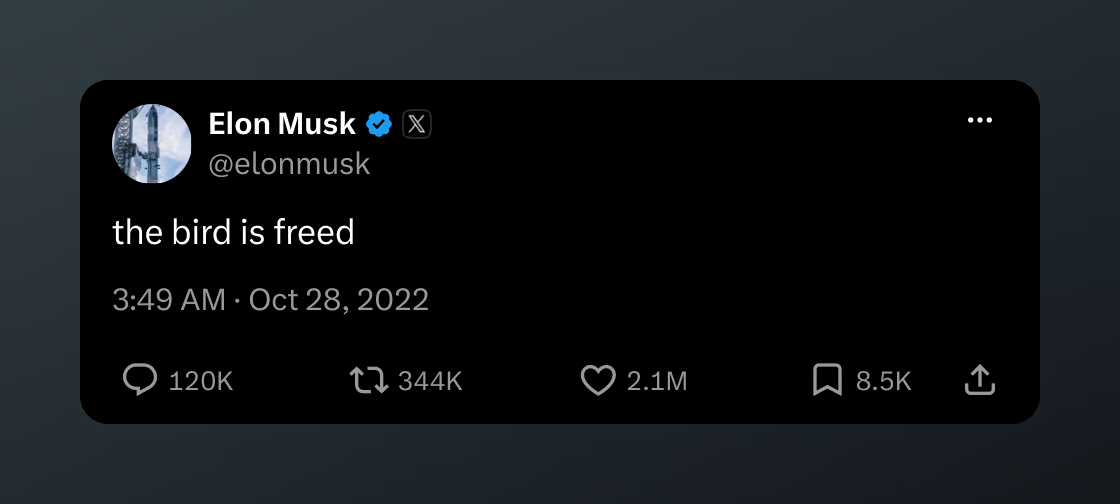
@elonmuskmidnight
The bird is freed
Four words from Twitter’s 2022 ownership change, in Midnight.
Saved examples captured November 16, 2026. Author profiles and engagement counts reflect that snapshot. To check a post again, load the example and select Generate image.
How it works
How to use X to Image
1
Paste a public post URL
Open the individual post on X, use its share menu, and copy the link. Paste that URL into the field above and select Generate image. Old twitter.com links work too. A profile, search page, or home timeline is not an individual post link. Use “Try a real post” if you want to test the workflow first.
2
Choose a look that fits
Start with Classic, Midnight, Mint, Lavender, Sunset, or Compact. Each preset combines a post layout with a background, and you can change the background afterward. Adjust the frame padding to give the content room to breathe. Choose a narrow, balanced, or wide post and check how its lines wrap in the live preview.
3
Download your finished image
Choose 1x, 2x, or 3x resolution, then save a PNG or WebP. The pixel dimensions above the canvas show the actual export size, including the frame. Longer posts get more vertical space automatically. Your download uses the selected appearance and includes no added A2A watermark. Keep the original post link alongside it when sharing.
Features
X to Image features
Six styles, one source post
Use a clean light card for an article, a dark card for a presentation, or a soft gradient for a social post. Compact uses a timeline layout; the other presets use the more spacious post-detail layout. Switching styles preserves the retrieved author and post content, so you can compare different presentations of the same source.
A frame you can fine-tune
Choose Paper, Mint, Lavender, Sunset, Night, or no background. The padding control runs from zero to 80 pixels per side. This makes it easy to create an edge-to-edge card or a framed image without opening a separate design app. A background-free export leaves the area outside the rounded post transparent, including any remaining shadow.
Sharp exports in two formats
A 2x or 3x export gives text more pixels for slides, newsletters, and high-density screens. PNG keeps the output lossless; WebP offers a compact alternative for web publishing. The image is rendered in your browser with xeet after the post has been fetched. Style changes reuse the loaded post instead of requesting its URL again.
Use cases
Who uses X to Image?
Writers and newsletter editors
Turn a useful public statement into an illustration for an article or email. A consistent frame helps several posts feel part of the same story. Use the wider layout when a narrow crop creates too many lines. Link back to the original post and add surrounding context in your article so readers can inspect the source.
Creators and community teams
Save a launch announcement, public reply, or community highlight as a social graphic. Mint, Lavender, and Sunset give a simple post a more deliberate presentation. Check that the author is visible and the image remains readable at the size your audience will see. Make sure you have permission where required before republishing someone else’s work.
Presenters and researchers
Bring a public post into a slide deck, workshop, or research note without capturing browser chrome and unrelated interface elements. Use Midnight for dark slides or Classic for a light document. Save the URL and retrieval date with your notes, since an image is a snapshot of retrieved information and engagement counts can change later.
A closer look
What is a Twitter to Image tool?
A Twitter to Image tool turns the content of a public post into a standalone picture. X is the current platform name, but many people still call its posts tweets and search for twitter to image. Here, both names lead to the same task: paste a post link, choose its appearance, and save a picture you can use outside the platform.
The output is a rendered post card rather than a capture of your entire browser window. It focuses on the available author, text, timestamp, engagement details, and supported attachments. A2A uses the xeet rendering library for the post layout, then adds your selected frame. Availability depends on what can be retrieved from X; the tool does not log into an account to access restricted content.
X to Image examples: choose your finish
For a newsletter quotation, start with Classic at 600 px and 24–40 px of padding. Download at 2x to keep the text sharp when your editor resizes it. For a dark presentation, try Midnight with the Night background. Its dark post card sits naturally on a dark slide while preserving separation around the edges.
For a community highlight, try Mint or Lavender at 480 px with 40 px of padding. A 2x export is 1120 px wide with those settings. For a small inline reference, try Compact at 390 px and reduce the padding. The illustrative sample above lets you compare all six styles before loading a URL; “Try a real post” retrieves a public post from X.
Make your post image easy to read
Start with the destination. A narrow card suits a mobile reading flow, while a wider card usually needs fewer lines in a desktop article. More pixels improve sharpness, but they do not make tiny text easier to read after an image is heavily reduced. Preview the result at its intended display size and keep enough contrast between the post and its surrounding background.
Before publishing, compare the image with the original post, especially if it contains quoted material or media. A still image cannot preserve an interactive poll, a video, an entire conversation, or future edits. Include a text explanation and a source link where the image is used. That gives readers context and makes the information easier to access without relying only on the picture.
Post layouts are powered by xeet (opens in a new tab). A2A is an independent tool and is not affiliated with X Corp.
Common questions
X to Image FAQ
How do I convert an X or Twitter post to an image?
Copy the link to a public post, paste it into X to Image, and select Generate image. Once the post loads, choose a style, background, padding, width, and resolution. Check the preview, then download a PNG or WebP. The same workflow works with both x.com and twitter.com post links.
Is this Twitter to Image tool free, and do I need an account?
Yes. You can generate and download images without paying or creating an A2A account. You do not need to connect your X account or provide an API key. The tool adds no watermark to the exported image. Public post retrieval still depends on X making that post available.
Can I turn private posts, threads, or videos into images?
The tool loads one public post per URL. Private, deleted, age-restricted, or otherwise unavailable posts may fail to load. A thread is not automatically stitched into one image; generate each post separately. Video and GIF attachments, when available, appear as still poster frames rather than animated exports.
Which image format and resolution should I download?
Choose PNG for lossless text and graphics, or WebP for a smaller image file. Resolution options are 1x, 2x, and 3x. For example, a 480 px post with 40 px padding on each side exports at 1120 px wide at 2x. Height follows the post content, so longer posts produce taller images.
Why is a post or part of its media missing?
X may block retrieval, remove a post, or restrict its audience. Images, avatar details, quoted posts, and other attachments can also be unavailable independently. The preview is a rendering of the details retrieved at that time. External website link-card previews are not fetched by this tool. Review any warning, compare the original post, and try again if something is missing.
More tools to explore
A few more useful stops in the Tools hub.
Shakespeare Translator
Translate modern English into Shakespearean English, or make an older passage easier to read. Text and images, three voices, and daily free uses.
Open toolLinkedIn Translator
Turn plain English into LinkedIn speak, decode corporate jargon, or translate a screenshot with AI. Start free; optional credits never expire.
Open toolMorse Code Translator
Translate text and Morse code, hear real tones with adjustable speed and pitch, and download WAV audio — all in your browser.
Open toolMeta Glasses Converter
Convert any photo to the Ray-Ban Meta glasses format: 3024×4032 portrait JPEG with glasses EXIF, Base64 copy, and one-tap save.
Open tool