Qwen Image 2.1 is an image model for creating pictures from text and editing existing images. GGUF files are community-converted versions of its generation weights, designed for compatible local inference tools.
The model itself is only one part of the setup. A local workflow also needs a runtime, a text encoder, and the matching VAE—the component that turns the model's image representation into pixels.
This guide explains what the conversion changes, how to choose a file size, and how to connect the pieces. The command follows the maintainer's documentation; I have not benchmarked it on a specific computer.
1. What does GGUF change?
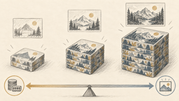
Think of a model as a detailed drawing kit packed into a box. Quantization stores its numbers with fewer bits, much like packing the kit into a smaller box. The file takes less space, but the conversion also introduces some numerical loss.
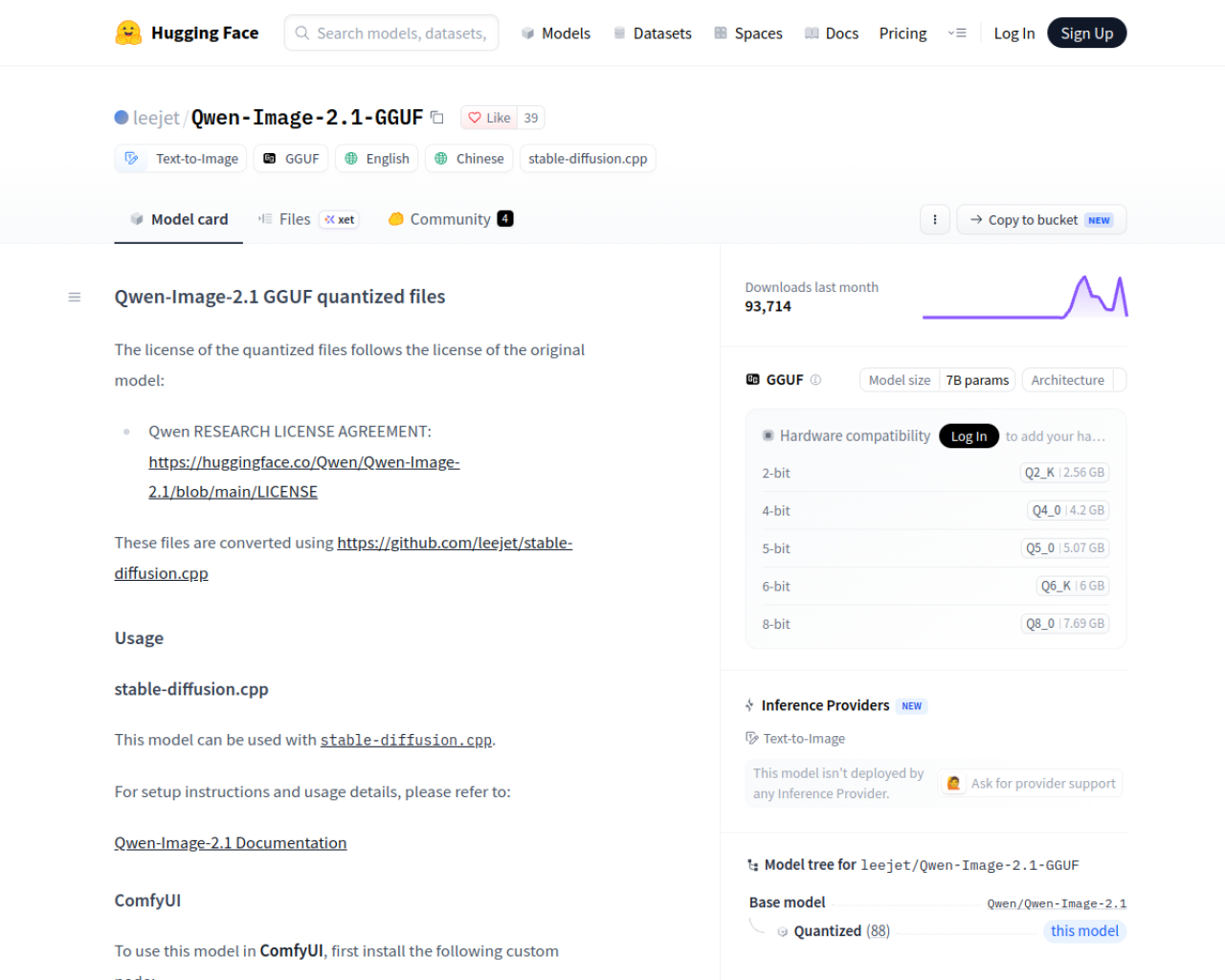
The files in the community Qwen Image 2.1 GGUF repository are conversions, not a separate model trained by Qwen. The official model card describes a 7-billion-parameter visual-generation component. The original model supports text-to-image generation, image editing, and transparent RGBA output. A converted runtime may expose only some of those features.
2. Choose a quantization
The repository lists several quantized files. Their download sizes help estimate storage, but they are not minimum GPU-memory requirements.
| Quantization | File size | A reasonable starting point |
|---|---|---|
| Q2_K | 2.56 GB | When storage is very limited |
| Q3_K | 3.27 GB | When you need a small file with a little more detail |
| Q4_0 / Q4_K | 4.20 GB | A practical balance for many local setups |
| Q5_0 | 5.07 GB | When you can spend more memory to retain detail |
| Q6_K | 6.00 GB | When image fidelity matters and resources allow it |
| Q8_0 | 7.69 GB | A larger, higher-precision option |
These are the sizes shown in the repository's file list. In general, higher-bit weights preserve more numerical detail and need more storage. The visible effect depends on the prompt, resolution, runtime, and hardware, so no single choice is best for every image.
Do not read “4.20 GB” as “this needs exactly 4.20 GB of VRAM.” Inference also uses memory for the text encoder, VAE, intermediate image data, and runtime work buffers. Higher resolutions can raise that working-memory requirement. Start with a quantization that fits your storage, then test the resolution and speed you need.
3. The GGUF is one part of the pipeline
The diffusion model interprets the prompt and builds an image representation. The text encoder turns the prompt into model input. The VAE decodes the image representation into pixels.
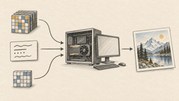
For the documented Qwen Image 2.1 setup, prepare three files:
- The diffusion weights, such as
qwen_image_2.1-Q4_K.gguf. - A Qwen3-VL-8B-Instruct text encoder. The maintainer's example uses
Qwen3VL-8B-Instruct-Q4_K_M.gguf. - The matching
qwen_image_2.1_vae_bf16.safetensorsVAE.
The maintainer warns that this VAE is not interchangeable with the earlier Qwen Image or Wan 2.2 VAEs. For image editing with a GGUF text encoder, the documented setup also requires a matching vision projection file, such as mmproj-Qwen3VL-8B-Instruct-F16.gguf.
4. Run a text-to-image example
The stable-diffusion.cpp Qwen Image 2.1 guide shows how to pass the diffusion weights, text encoder, and VAE to sd-cli. Here is its basic command shape using Q4_K; change the paths to match your files.
sd-cli \
  --diffusion-model ../models/diffusion_models/qwen_image_2.1-Q4_K.gguf \
  --vae ../models/vae/qwen_image_2.1_vae_bf16.safetensors \
  --llm ../models/text_encoders/Qwen3VL-8B-Instruct-Q4_K_M.gguf \
  -p "A small mountain observatory after fresh snowfall, warm window light, quiet winter dusk" \
  --cfg-scale 6.0 \
  --sampling-method euler \
  --offload-to-cpu \
  -o qwen-image-2.1.png
In this command, --diffusion-model points to the GGUF file; --llm and --vae load the two companion files. The prompt follows -p. CPU offload may help when GPU memory is tight, but it can slow generation. The maintainer's guide also says image dimensions should be divisible by 32.
If you prefer ComfyUI, the GGUF model card links to a starter text-to-image workflow and recommends the leejet/ComfyUI-GGUF custom node. Follow that repository's current setup instructions and check that your ComfyUI version supports the required nodes.
5. Common mistakes
- Treating the diffusion GGUF as the whole model. It does not replace the text encoder, VAE, or a runtime that understands this conversion.
- Choosing a VAE by a similar filename. Use the Qwen Image 2.1 VAE listed in the setup guide; the earlier model VAEs are not interchangeable.
- Estimating VRAM from download size. The GGUF file size measures storage. Inference also needs working memory, and resolution changes the amount.
- Assuming quantization changes the license. The GGUF repository says its files follow the original model's license. The Qwen Research License Agreement grants use for non-commercial purposes; commercial use requires a separate license from Qwen.
Conclusion
Qwen Image 2.1 GGUF is a compact way to load converted image-generation weights in a compatible local runtime. The practical setup has three parts: diffusion GGUF, Qwen3-VL text encoder, and the matching VAE. Choose quantization by balancing file size and image fidelity, then check actual memory use at your target resolution.
For current filenames and compatibility notes, start with the GGUF repository and the maintainer's runtime guide.
(End)